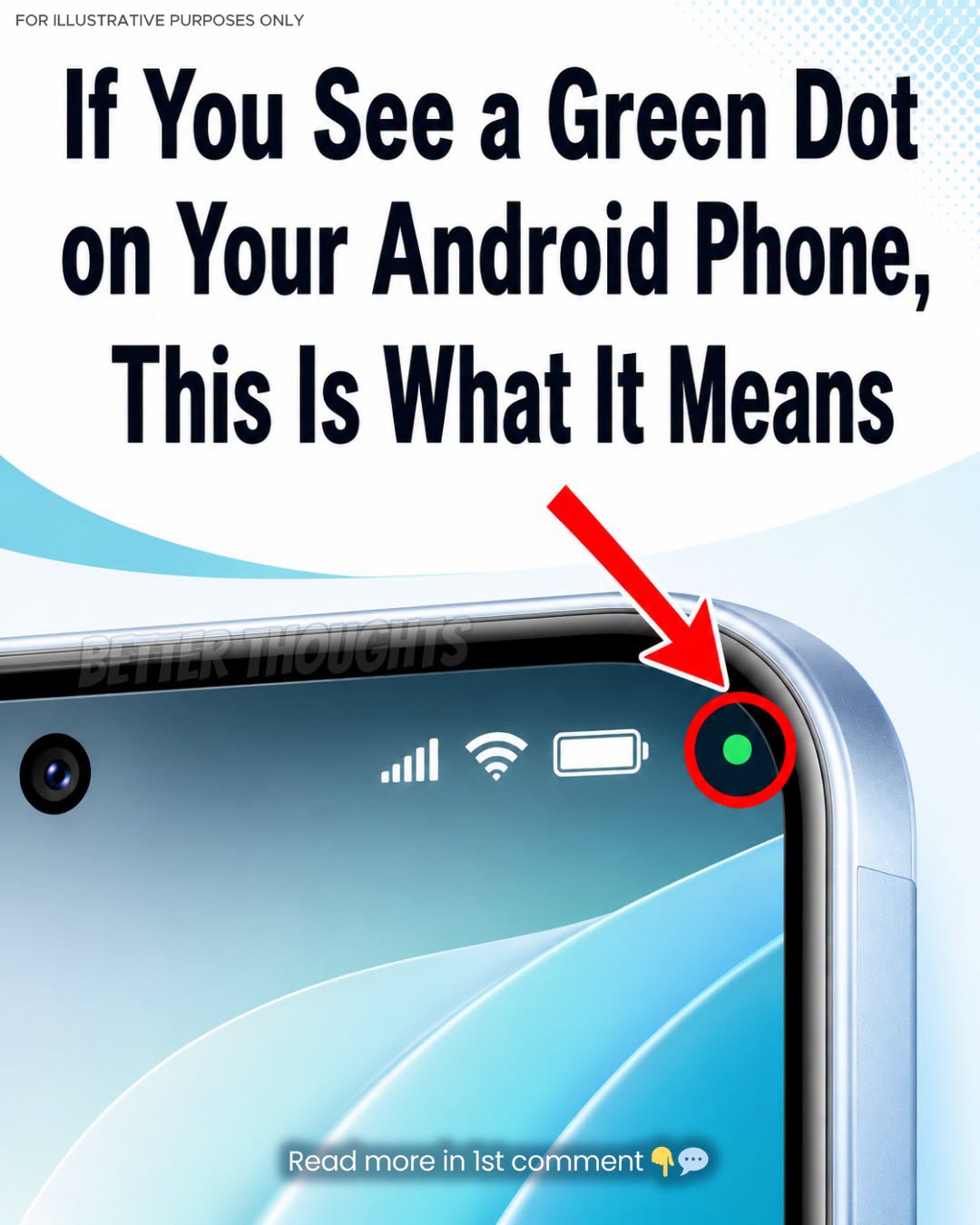
Have you ever noticed a small green dot appear at the top of your Android phone screen? It may show up near the battery icon, the signal bar, or the top-right corner of the display.
At first, it can look confusing. Some people may even worry that their phone is secretly recording them.
But in most cases, the green dot is not a warning that your phone has been hacked. It is actually a privacy feature built into Android. Its job is simple: to let you know when an app is using your camera, microphone, or both.
Starting with Android 12, Google added privacy indicators to make sensitive access more visible to users. According to Android’s official developer documentation, when an app accesses the microphone or camera, an icon appears in the status bar on devices running Android 12 or higher.

What Does the Green Dot Mean?
The green dot means that your phone’s camera or microphone is currently being used. Sometimes, the dot may appear as a small green circle. Other times, when you swipe down from the top of the screen, it may expand into a camera or microphone icon.
For example, you may see the green dot when you are taking a photo, recording a video, making a video call, sending a voice message, using voice typing, scanning a QR code, or talking to a voice assistant. In these situations, the dot is completely normal.
Think of it like a small privacy light. Just as a laptop may have a camera light that turns on during a video call, Android uses the green dot to show that a sensitive sensor is active.
Why Did Android Add This Feature?
The camera and microphone are considered sensitive parts of your phone because they can capture information from your private environment. Your camera can show where you are and what is around you. Your microphone can pick up your voice and nearby sounds.
That does not mean every app using them is dangerous. Many apps need camera or microphone access to work properly. A camera app needs the camera. A voice recorder needs the microphone. A video call app needs both.
The problem is that users should always know when this access is happening. That is why Android created this visual indicator. It gives users more transparency and control.
Google’s support page explains that when apps use the camera or microphone, a green indicator appears at the top-right corner of the screen. Users can swipe down and tap the indicator to see which app or service is using it.

Should You Be Worried?
Not always. If the green dot appears while you are actively using an app that needs the camera or microphone, there is no reason to panic.
However, you should pay attention if the dot appears when you are not doing anything related to recording, calling, taking photos, or using voice features. For example, if you are simply reading an article or checking the time and the dot suddenly appears, it is worth checking which app triggered it.
Android’s privacy indicator may also remain visible briefly after camera or microphone access ends. Android documentation notes that on Android 12 or higher, microphone and camera usage can still be treated as active if it happened very recently.
So, if the dot disappears quickly, it may simply be a normal system delay. But if it keeps appearing repeatedly for no clear reason, you should investigate.
How to Check Which App Is Using Your Camera or Microphone
When you see the green dot, swipe down from the top of your screen. Then tap the green indicator. Android should show you which app is using your camera, microphone, or both.
If you tap again, you can usually open permission settings and manage that app’s access. Google says users can tap the indicator once to check which app or service is using the camera or microphone, and tap again to manage permissions.
You can also check this later through the Privacy Dashboard. On many Android phones, go to Settings, then Privacy or Security & Privacy, then Privacy Dashboard. From there, you can see which apps have accessed permissions such as camera and microphone. Google explains that the Privacy Dashboard shows which apps are accessing data, which permissions they use, and when access happens.

What Should You Do If an App Looks Suspicious?
If an app is using your camera or microphone and you do not understand why, first close the app. Then check its permissions. If the app does not need camera or microphone access, change the permission to “Don’t allow” or “Ask every time,” depending on your phone’s options.
You should also delete apps you no longer use. Old apps can still have permissions, even if you rarely open them. Keeping fewer apps on your phone makes it easier to protect your privacy.
Another smart step is to keep your Android system and apps updated. Updates often include security improvements and bug fixes.
The Bottom Line
The green dot on your Android phone is a privacy signal. It means an app is using your camera or microphone. Most of the time, this is normal. But if the dot appears unexpectedly, Android gives you tools to check what is happening.
In short, the green dot is not something to fear. It is something to notice. That tiny signal helps you understand when your private sensors are active, so you can stay informed, alert, and in control of your phone.
* Information is for reference only.
Disclaimer: This article was created with AI assistance and reviewed by a human for accuracy and clarity.


.jpg)


0 commentaires:
Enregistrer un commentaire